
Chatting with Insight AI
Open chat from the dashboard sidebar — click a conversation under Recent, or All chats →. To get back, use the Insight AI logo at the top of the chat sidebar.
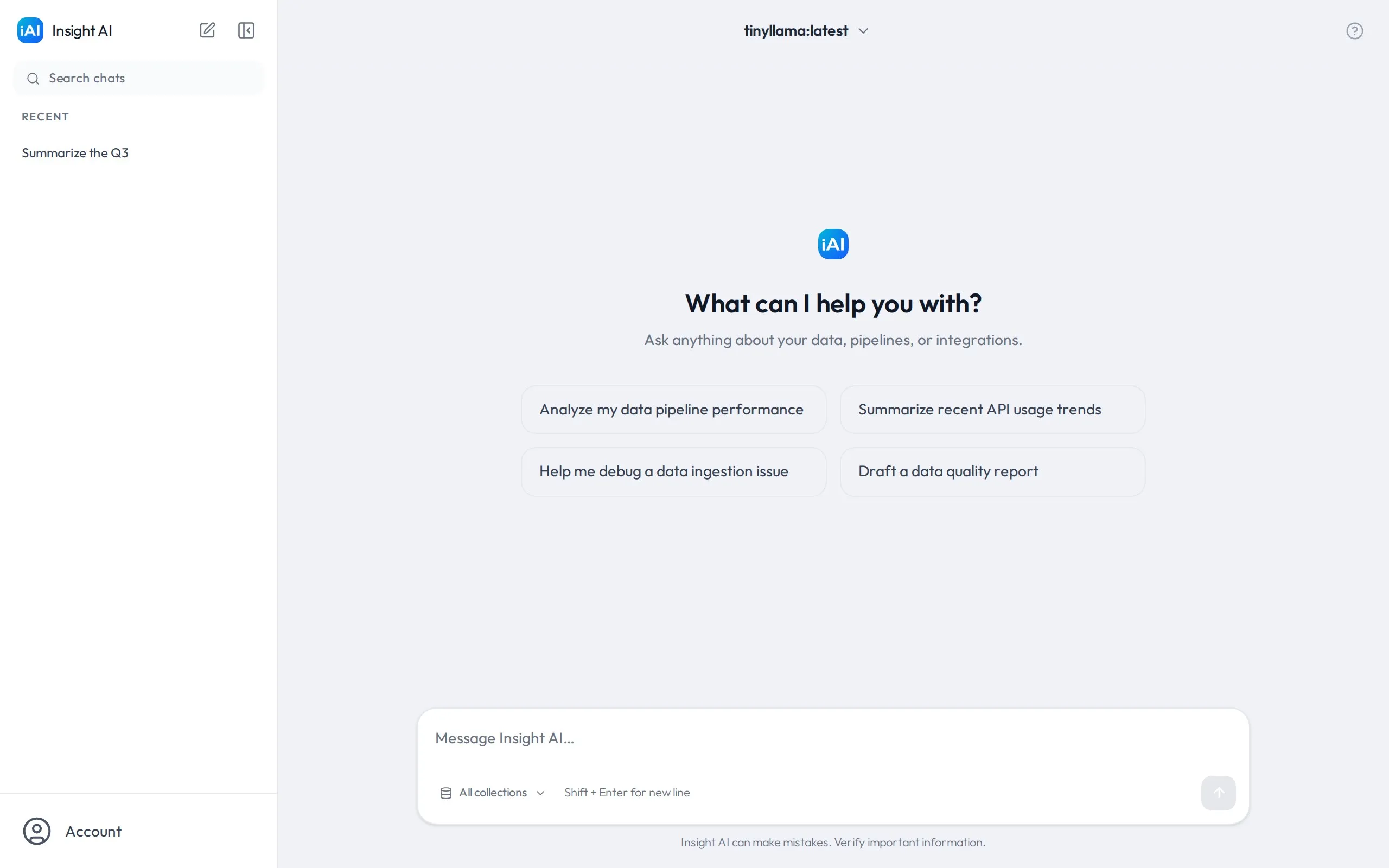
Start a conversation
Section titled “Start a conversation”- Pick a model from the model selector at the top of the chat (see choosing a model).
- Type your message in the input box (“Message Insight AI…”) and press Enter. Use Shift + Enter for a new line.
- The conversation is saved automatically and given a short title based on your first message. It appears under Recent in the sidebar.
The response streams in word by word as the model generates it. While it’s generating, the send button becomes a Stop generation button; a stopped reply keeps whatever text had arrived, marked with a Generation stopped chip and a Retry link that generates a fresh take (both versions stay reachable — see editing & response versions).
If you’re not sure where to begin, the empty chat screen (“What can I help you with?”) offers suggestion cards such as “Analyze my data pipeline performance” or “Draft a data quality report” — click one to use it as your message.
How answers use your documents
Section titled “How answers use your documents”When you send a message, Insight AI automatically searches your indexed collections for content related to your question. The most relevant passages — along with the files they came from — are provided to the model as context, so answers can be grounded in your organization’s own documents.
Things to know about this behavior:
- It searches what you can access. Retrieval covers the collections owned by your group. To narrow it further, use the All collections pill next to the message box — it opens a picker where you can limit this chat to specific collections.
- Only strong matches are used. Passages must be sufficiently similar to your question to be included, and the amount of context is capped, so very loosely related documents won’t influence answers.
- It’s best-effort. If nothing relevant is found (or no ingested documents are available to you), the model simply answers from its general knowledge.
To get grounded answers, make sure your documents have been ingested — see pipelines.
Tracing an answer to its sources
Section titled “Tracing an answer to its sources”When a reply draws on your documents, the borrowed text is underlined, with a small colored number marking which source it came from.
- Hover an underlined passage to see the quote as it reads in the source document, with surrounding context and the file name. Press Escape to dismiss the callout.
- Below the reply, a line like “4 sources — hover the underlined text to trace it” expands into the full source list: each entry shows its number, the file name, and the collection it lives in. Only the first three show at first — + N more reveals the rest.
- Hover a source in the list and every passage in the reply that came from that file lights up.
- Select any text in a reply to check it: if the selection appears in a retrieved document you’ll see where; if not, the callout says “Not found in the retrieved sources” — a quick honesty test for a claim that looks too confident.
Only text the model copied closely enough is underlined — paraphrased ideas aren’t marked, so an answer without underlines can still be document-based. Source markers live only in the session where the answer was generated: after a page reload, the reply text stays but the underlines and source list are gone.
Working with responses
Section titled “Working with responses”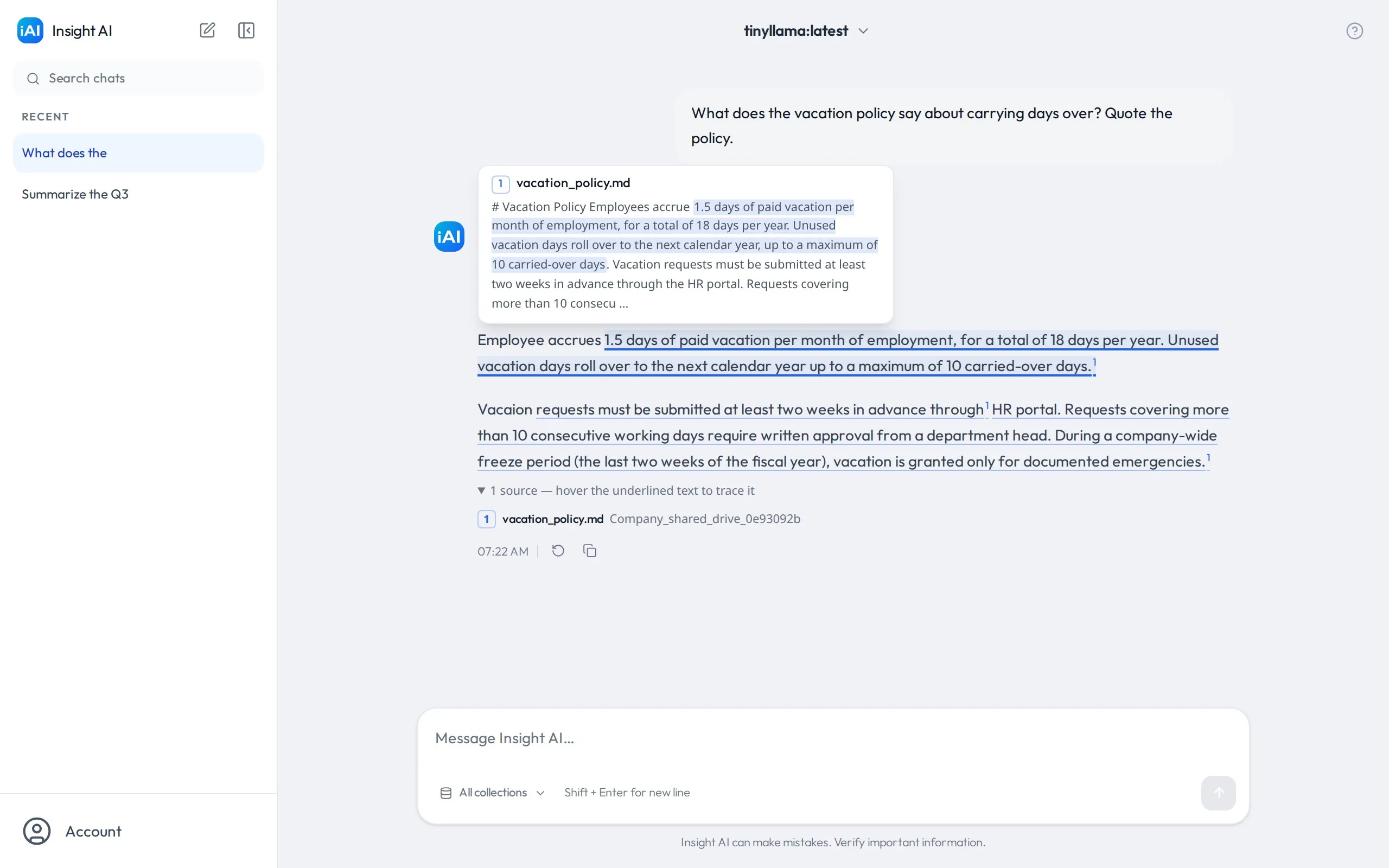
Hover over any message to reveal its actions:
- Copy — copies the message text to your clipboard.
- Edit (your messages) — revise a question and get a fresh answer; see editing & response versions.
- Regenerate (AI messages) — ask the model to answer again.
AI responses are rendered with full formatting — headings, lists, tables, and syntax-highlighted code blocks.