
Collections
A collection is a searchable index. When a pipeline ingests documents, their content is split into passages, converted into semantic vectors, and stored in a collection — that’s what lets chat find relevant content by meaning rather than exact keywords.
Where collections come from
Section titled “Where collections come from”You don’t create collections by hand. When you connect a data
source, a collection is provisioned automatically
along with the pipeline that fills it — named after the source plus a short
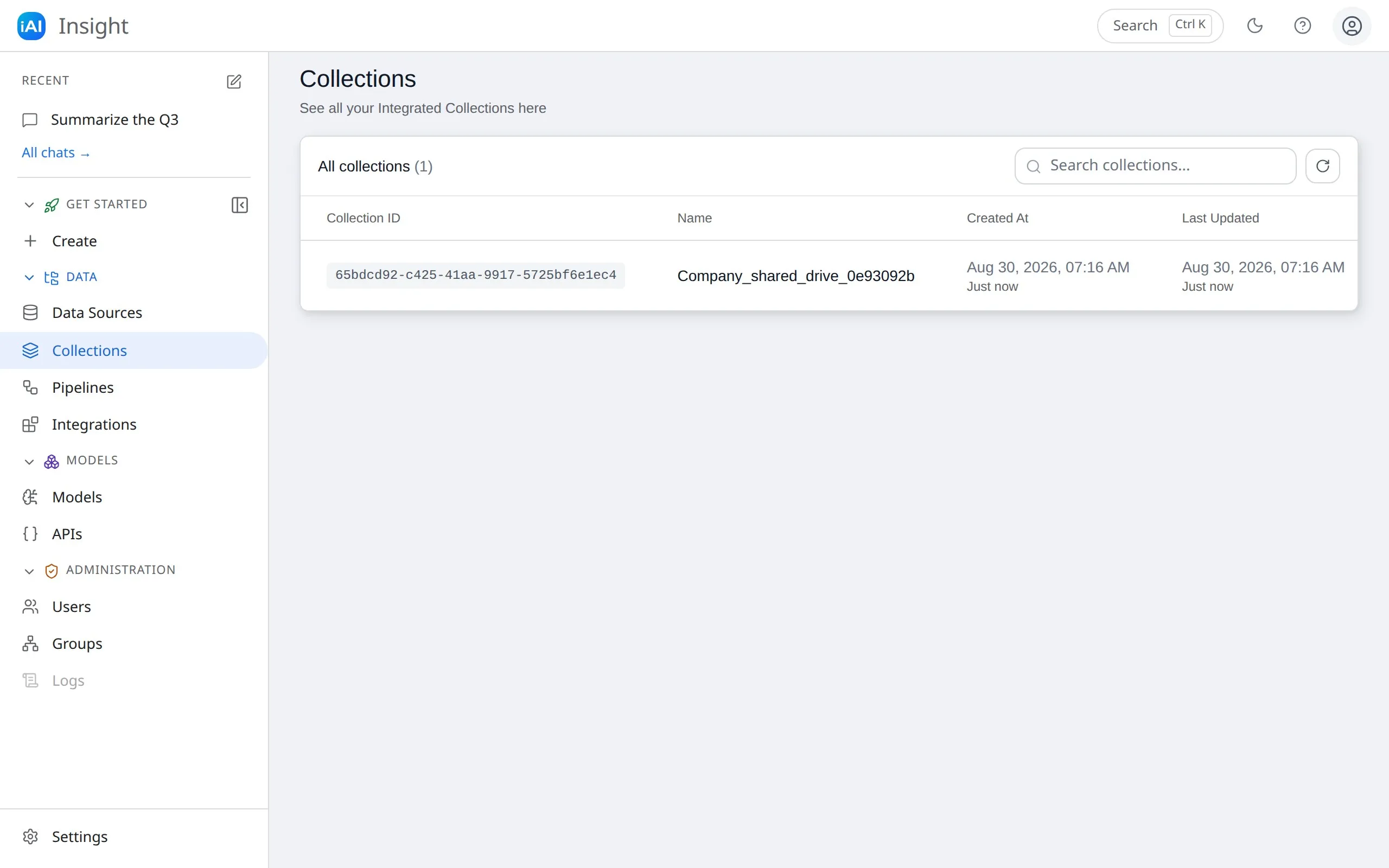
unique suffix (for example Company_shared_drive_0e93092b). The Collections
page is where you review and manage them.
Who can see a collection
Section titled “Who can see a collection”Every collection belongs to the group that owns its data source, and only members of that group can find it — in the Collections list, in chat’s collection picker, and in retrieval. If a collection you expect is missing, you’re probably not in its owner group; ask to be added (see groups).
This is also what makes group ownership meaningful: put sensitive material behind a group containing only the people who should be able to ask questions about it.
Review a collection
Section titled “Review a collection”Click a collection in the list to see its Details — ID, name, and created/updated timestamps. (The Analytics tab is a placeholder for upcoming metrics.)
The Last Updated column on the list page is a quick way to see when each index last changed.
Best practices
Section titled “Best practices”- One collection per pipeline. Each ingestion run rebuilds its target collection from scratch, so if two pipelines share a collection, running one erases the other’s documents. The automatic provisioning already follows this rule — keep it if you wire pipelines manually through the API.
- Group before content. Since access follows the owner group, decide who should be able to query the material before connecting the source.
Delete a collection
Section titled “Delete a collection”Open the collection and select Delete Collection. This permanently removes the index and all its ingested content — chat will no longer find those documents. The original files on your file share or Drive are never touched.
Deleting a data source removes its auto-provisioned collection with it, so you rarely need to delete one directly. If a pipeline targeted a deleted collection, it will fail on its next run — delete or recreate the pipeline accordingly.