
Ingestion pipelines
A pipeline connects one data source to one collection. Running a pipeline ingests the source’s documents: supported files are read, their text extracted, split into passages, and indexed into the collection so chat can search them.
Where pipelines come from
Section titled “Where pipelines come from”Connecting a data source provisions a pipeline (and its collection) automatically, so most pipelines you’ll see were created for you. You can still wire one manually when you need a different source-to-collection pairing:
- Go to Pipelines and select Create Pipeline.
- Fill in the form:
- Pipeline Name — e.g.
Handbook → company_handbook. - Description — what this pipeline ingests and why.
- Data Source — the source to read from.
- Collection — the collection to index into.
- Pipeline Name — e.g.
- Select Create Pipeline.
Each source-and-collection pair can have only one pipeline; creating a duplicate is rejected. As a best practice, give each pipeline its own collection — see collections best practices.
Pipeline status
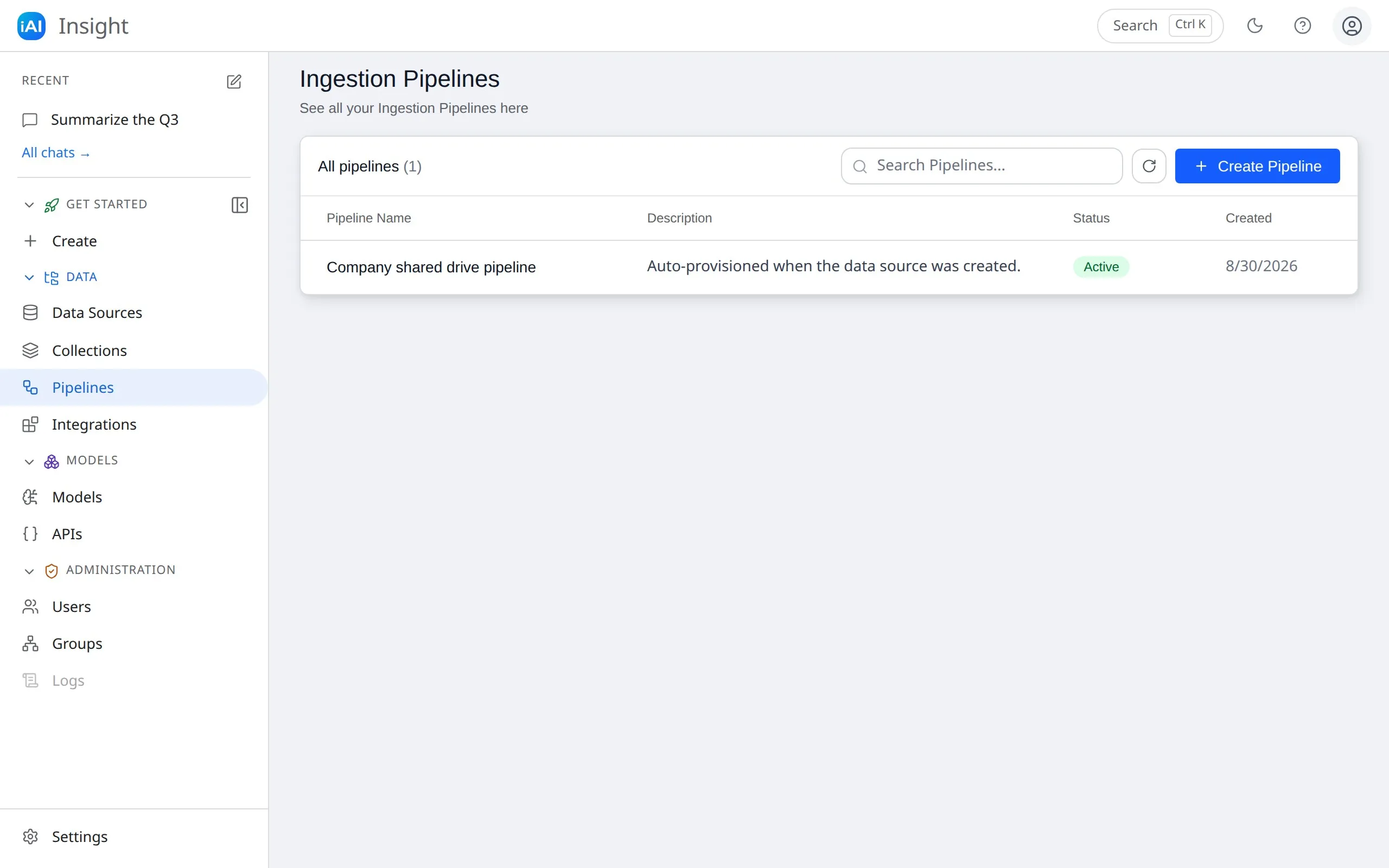
Section titled “Pipeline status”The Status column on the Pipelines page shows where each pipeline stands:
| Status | Meaning |
|---|---|
| inactive | Created but hasn’t completed an ingestion yet. |
| processing | An ingestion is currently running. |
| active | The last ingestion completed successfully. |
| error | The last ingestion failed — open Monitoring for the error message. |
Run and monitor an ingestion
Section titled “Run and monitor an ingestion”- Open the pipeline and switch to the Monitoring tab. The Pipeline Flow panel shows the source → collection connection and current status.
- Select Start Ingestion (on a pipeline that has already completed a run, the button reads Re-run Ingestion).
While the run is in progress you’ll see live updates:
- A Progress bar with percentage complete.
- Files Processed as a running count against the number of files discovered.
- Status messages such as “Discovering files from SMB source…” and “Processing: /reports/q3.pdf”.
- Started At / Completed At timestamps.
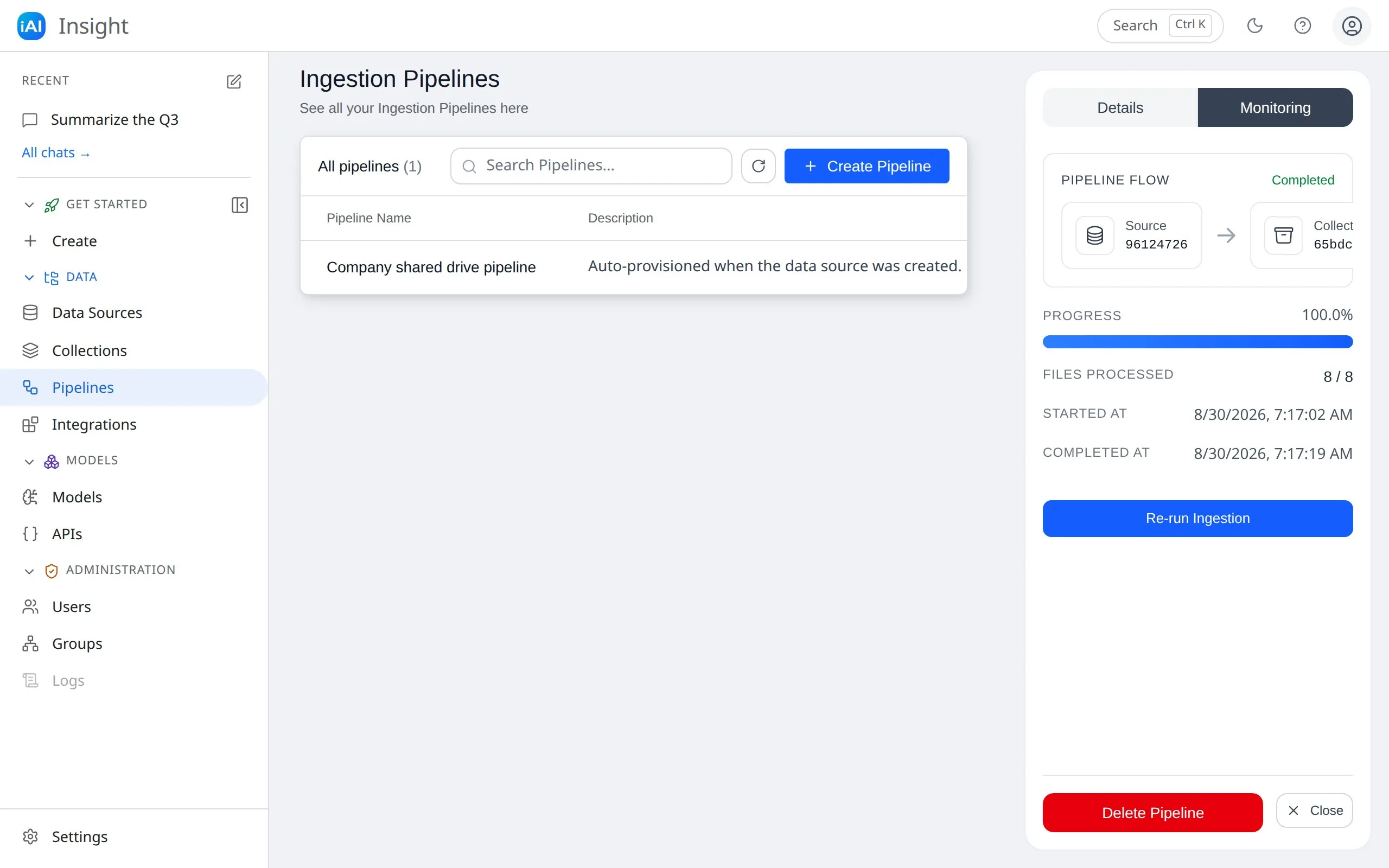
Runs move through running → completed (green) or failed (red). Only one ingestion can run per pipeline at a time, and ingestion jobs across the workspace are processed one after another — if others are running, yours may wait in line before it starts.
What gets ingested
Section titled “What gets ingested”- For an SMB source, all accessible shares and folders are scanned recursively. For a Google Drive source, the files the connection has been granted (everything, or the ones you picked).
- Only supported document types are indexed (PDF, Word, PowerPoint, text, Markdown, CSV). Other files are skipped.
- Files over 50 MB, hidden files, and system files are skipped automatically.
Re-running a pipeline
Section titled “Re-running a pipeline”Ingestion is a full refresh: every run first clears the target collection, then re-indexes everything it finds on the source. This means:
- Re-running picks up new, changed, and deleted files — the collection always ends up matching the current state of the share.
- There is no incremental or scheduled sync; runs are started manually. Re-run a pipeline whenever the source content has changed enough to matter.
- While a run is in progress (or if it fails partway), the collection may be temporarily empty or incomplete — chat answers drawing on it will recover once the run completes successfully.
When an ingestion fails
Section titled “When an ingestion fails”A failed run stops at the first file it can’t process. The Monitoring tab shows a red Error block naming the file and the reason, and the pipeline status becomes error.
- Read the error message — common causes are a file that can’t be opened on the share, connectivity loss mid-run, or a document with no extractable text.
- Fix or remove the offending file (or the connectivity issue).
- Select Retry Ingestion on the Monitoring tab.
Because the collection is cleared at the start of each run, a failed run can leave it partially filled — re-run to completion to restore full search coverage. See also troubleshooting.
Delete a pipeline
Section titled “Delete a pipeline”Open the pipeline and select Delete Pipeline on the Details tab. This removes the pipeline definition only — the collection and its indexed content remain until you delete or re-ingest the collection itself.