
Managing models
The Models page in the dashboard manages your organization’s shared model catalog. Models pulled here become available to every user, who can then add them to their personal list for use in chat.
Insight AI runs models locally on your workspace’s own infrastructure — your questions and documents are not sent to third-party AI providers. Models come from the public Ollama library.
Pull a new model
Section titled “Pull a new model”- Go to Models and select Create Model.
- Enter the model’s ID/tag from the Ollama library — for example
llama3.2,mistral, orqwen2.5:14b. - Select Create Model and keep the panel open.
You’ll see live progress as the model downloads: a progress bar, the current status, and the layer being fetched. Downloads recover from transient failures automatically; if a download still fails after the automatic retries, select Create Model to try again.
When the download completes, Insight AI benchmarks the model and records its speed. The completed entry shows the model ID and measured Tokens/Second.
Review the catalog
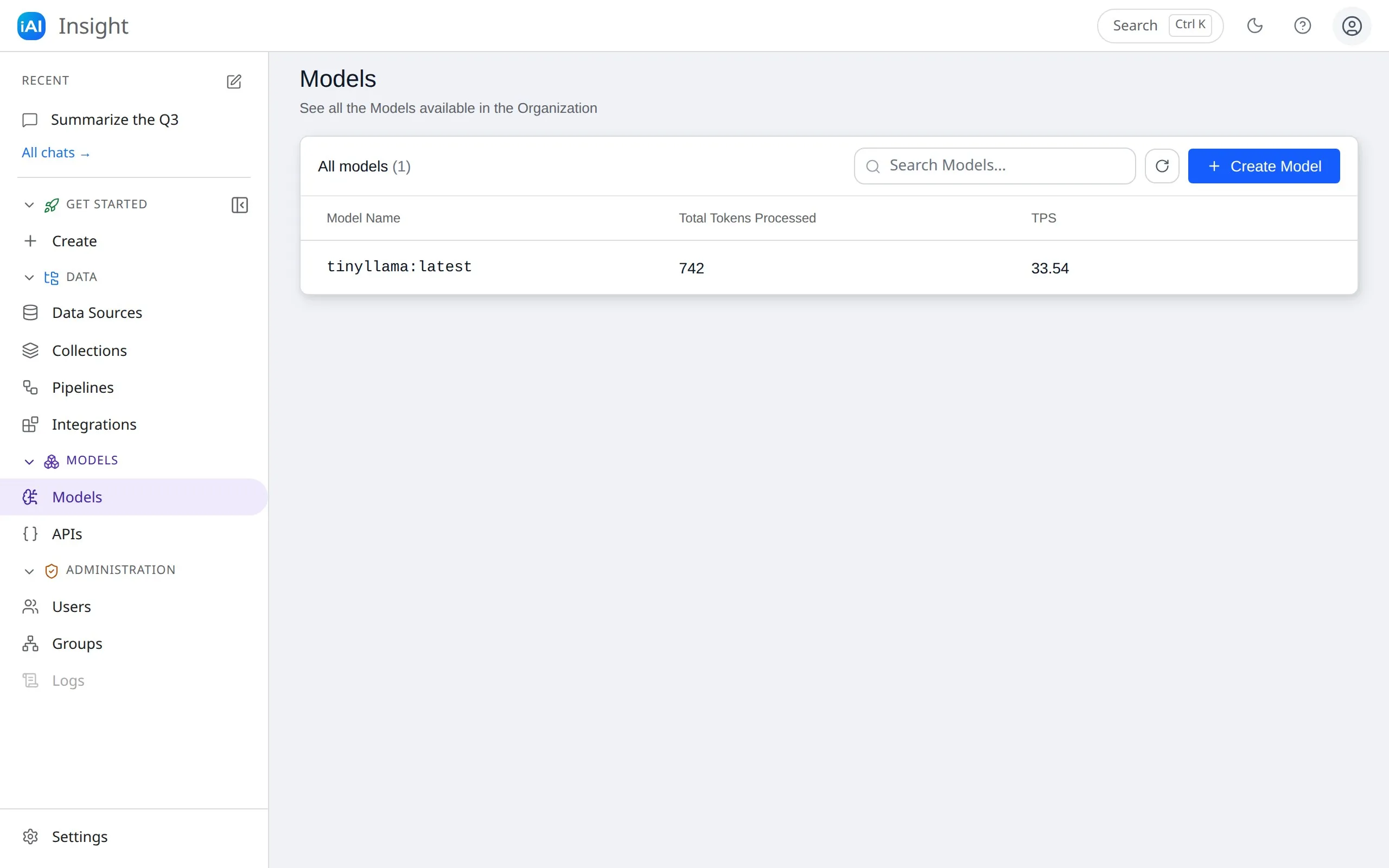
Section titled “Review the catalog”The Models list shows each model’s name, Total Tokens Processed (cumulative usage), and TPS (benchmarked tokens per second). Click a model for its full details.
Delete a model
Section titled “Delete a model”Open a model and select Delete Model. This removes it for the whole organization: it disappears from every user’s personal list and is deleted from the model server, freeing disk space. Anyone mid-conversation with that model will need to switch models to continue.
Coordinate with your team before deleting models others may rely on.
Making models usable in chat
Section titled “Making models usable in chat”Pulling a model makes it available; each user then adds it to their own list from the chat’s Manage Models window (with optional hardware notes). See choosing a model.