
Connecting a data source
A data source is a connection to where your files live. Insight AI connects to two kinds today:
- SMB network file shares — the standard Windows/Samba shares most organizations already use for shared drives.
- Google Drive — a connected Google account, ingesting either everything it has granted or files you pick.
Connecting a source also sets up everything downstream: a collection and an ingestion pipeline are provisioned automatically, so a new source is ready to ingest the moment it’s created.
The Create wizard (recommended)
Section titled “The Create wizard (recommended)”The easiest path is the Create page (sidebar → Get started → Create), which walks group, connection, and first ingestion in one flow — the quickstart follows it step by step. The rest of this page covers the details and the standalone forms.
Before you start
Section titled “Before you start”Every data source is owned by a group, and that ownership decides who can search the ingested content — so you need at least one group you belong to.
For an SMB share you’ll also need connection details, typically from your IT team:
- The server’s name and IP address or hostname
- The port (usually
445) - A username and password with permission to read the share
For Google Drive you just need to be able to sign in to the Google account — access is granted through Google’s own consent window, and Insight AI can only read files that grant covers (everything you approve, or the specific files you pick).
Create an SMB data source
Section titled “Create an SMB data source”From Data Sources → Create Data Source (or the wizard’s SMB Share connector):
| Field | What to enter |
|---|---|
| Data Source Name | A recognizable name, e.g. Finance shared drive. |
| Owner Group ID | The group that owns this source (and its encrypted credentials) — pick it with Select a group. |
| Username | The SMB account name. |
| Password | The SMB account password. |
| Remote System Name | The server’s machine (NetBIOS/host) name. |
| Local System Name | Optional client identifier — the pre-filled default is fine (letters, numbers, underscores, hyphens). |
| IP Address | The server’s IPv4 address or hostname, e.g. 192.168.1.100. |
| Port | Your server’s SMB port (standard SMB uses 445; any value 1–65535 is accepted). |
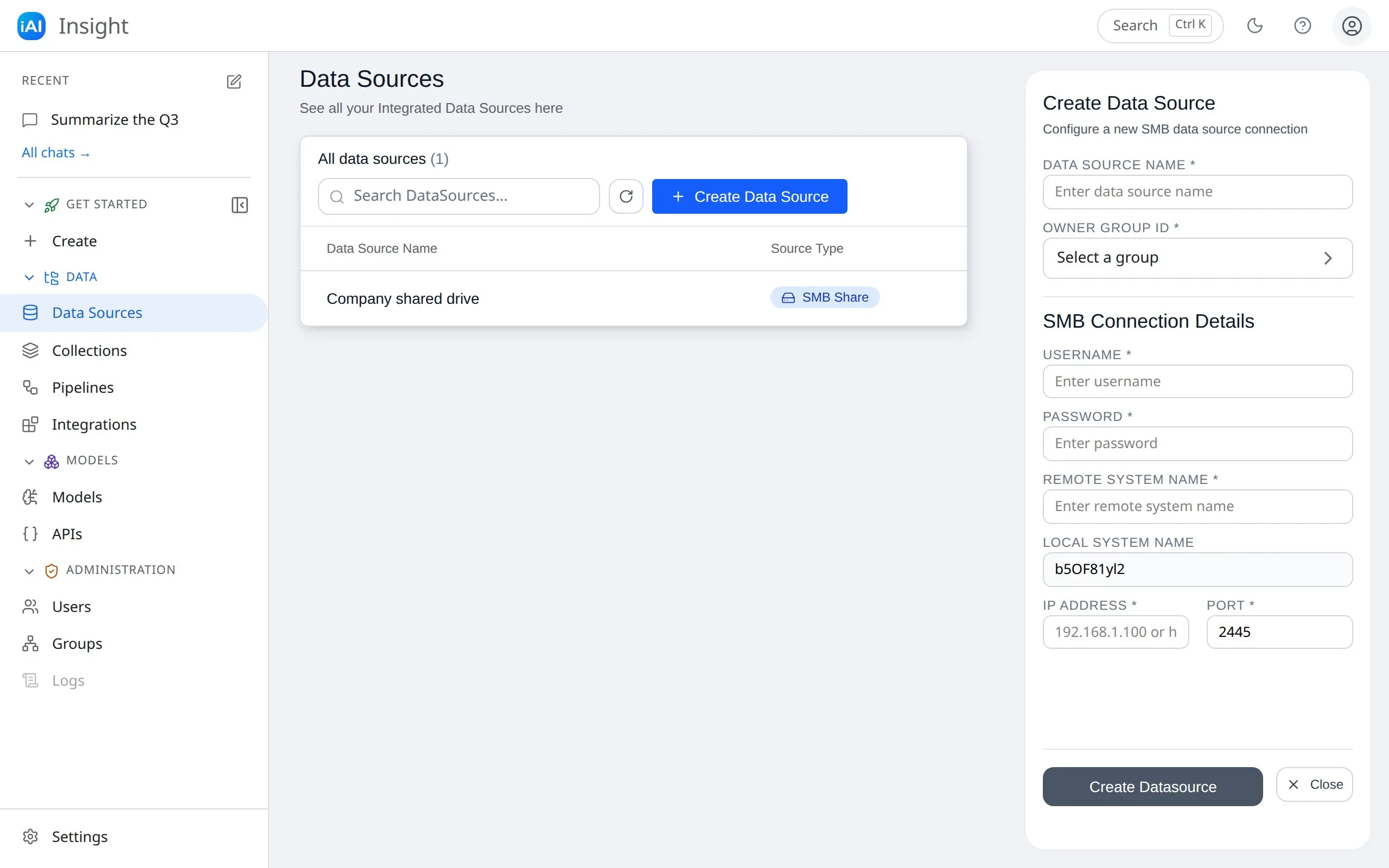
Insight AI tests the connection immediately by signing in to the share (retrying briefly if the server is slow to respond). If authentication fails, you’ll see “Invalid SMB credentials” and nothing is created — fix the details and try again.
Connect Google Drive
Section titled “Connect Google Drive”Drive has two halves: connecting the account, and choosing what to ingest.
- Connect the account — from the wizard’s Google Drive connector, or the Integrations page (sidebar → Data → Integrations). Select Connect Google Drive; Google opens in a small window to grant access, and the page stays where it is. Integrations shows the connection status afterwards — which account is linked, with a Disconnect action.
- Choose what to ingest when creating the source: Ingest everything (every file the connection has been granted), or Choose specific files and pick them in the Browse Drive files window.
Insight AI only ever sees what you granted: with file picking, that’s exactly the files you chose. You can add more files to the source later.
Verify what Insight AI can see
Section titled “Verify what Insight AI can see”Open an SMB source from the list and switch to the Shares tab. You’ll see a Network Shares file tree of the server’s shares; expand folders to browse the files inside. This is the best way to confirm the connection works and the right content is reachable.
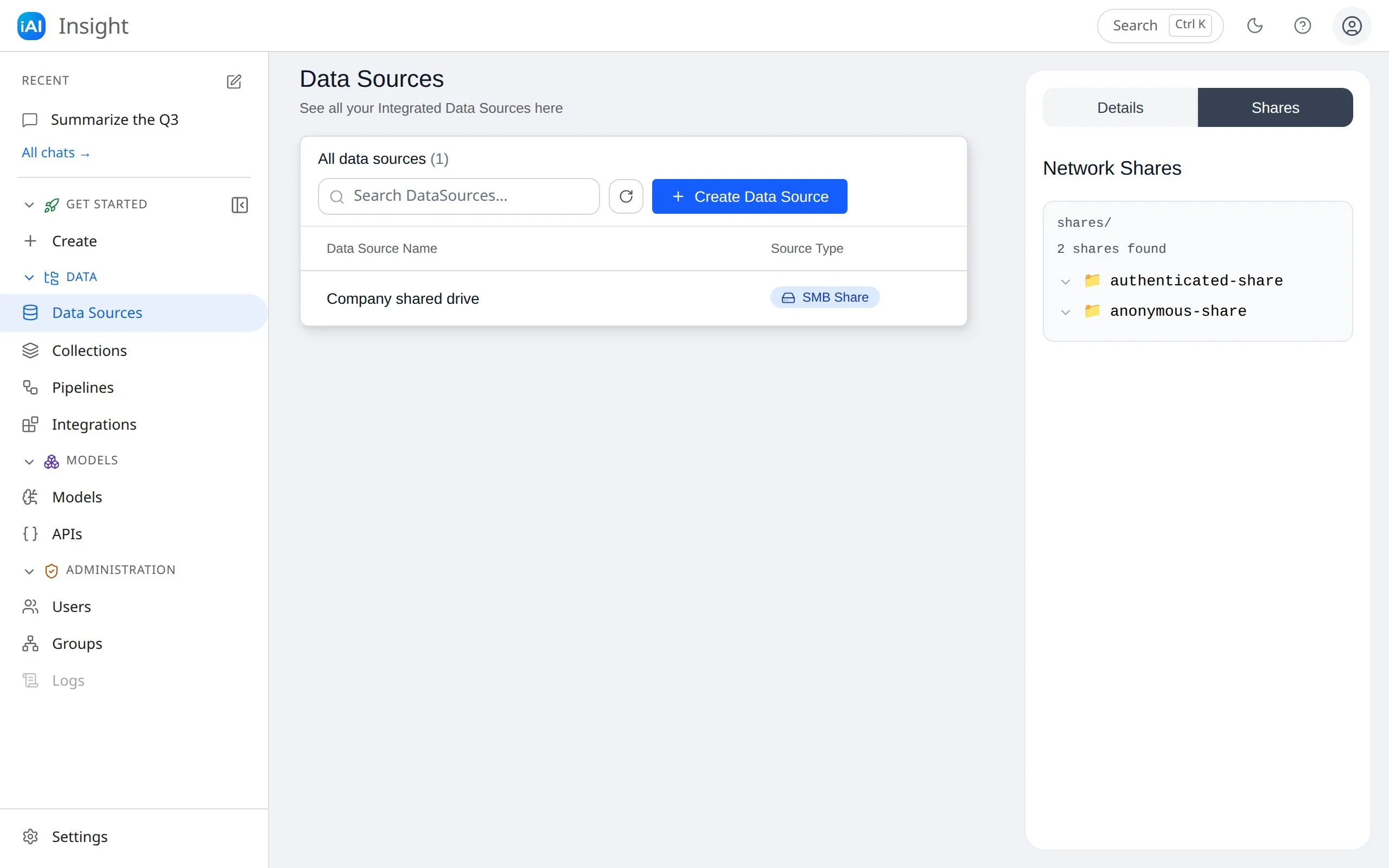
- A share marked with a red ⚠ (for example “Access denied”) means the account can connect to the server but can’t open that particular share. Other shares still work normally.
- If nothing loads and you see a connectivity error, the server may be unreachable from Insight AI — check the address, port, and network access.
Delete a data source
Section titled “Delete a data source”Open the source and select Delete Datasource on the Details tab. This also removes the collection and pipeline that were provisioned with it — the indexed content disappears from chat, while the original files on your share or Drive are never touched. (If another pipeline still targets the collection, the collection is left alone.)
What gets read
Section titled “What gets read”Connecting a source doesn’t index anything by itself — ingestion happens when you run a pipeline (or the wizard’s Start Ingestion step). During ingestion, Insight AI walks all accessible SMB shares and folders recursively — or the granted Drive files — and processes supported document types, skipping hidden and system files and anything over the size limit.