
Choosing a model
Every message in chat is answered by the model you currently have selected. Different models trade off speed against answer quality, so Insight AI lets you keep a personal list of models and switch between them at any time.
Switch models
Section titled “Switch models”Select the model name at the top of the chat (or Select Model if none is chosen yet). The dropdown lists Your Models, each with its measured speed in tokens per second (tok/s). Click one to use it for your next message.
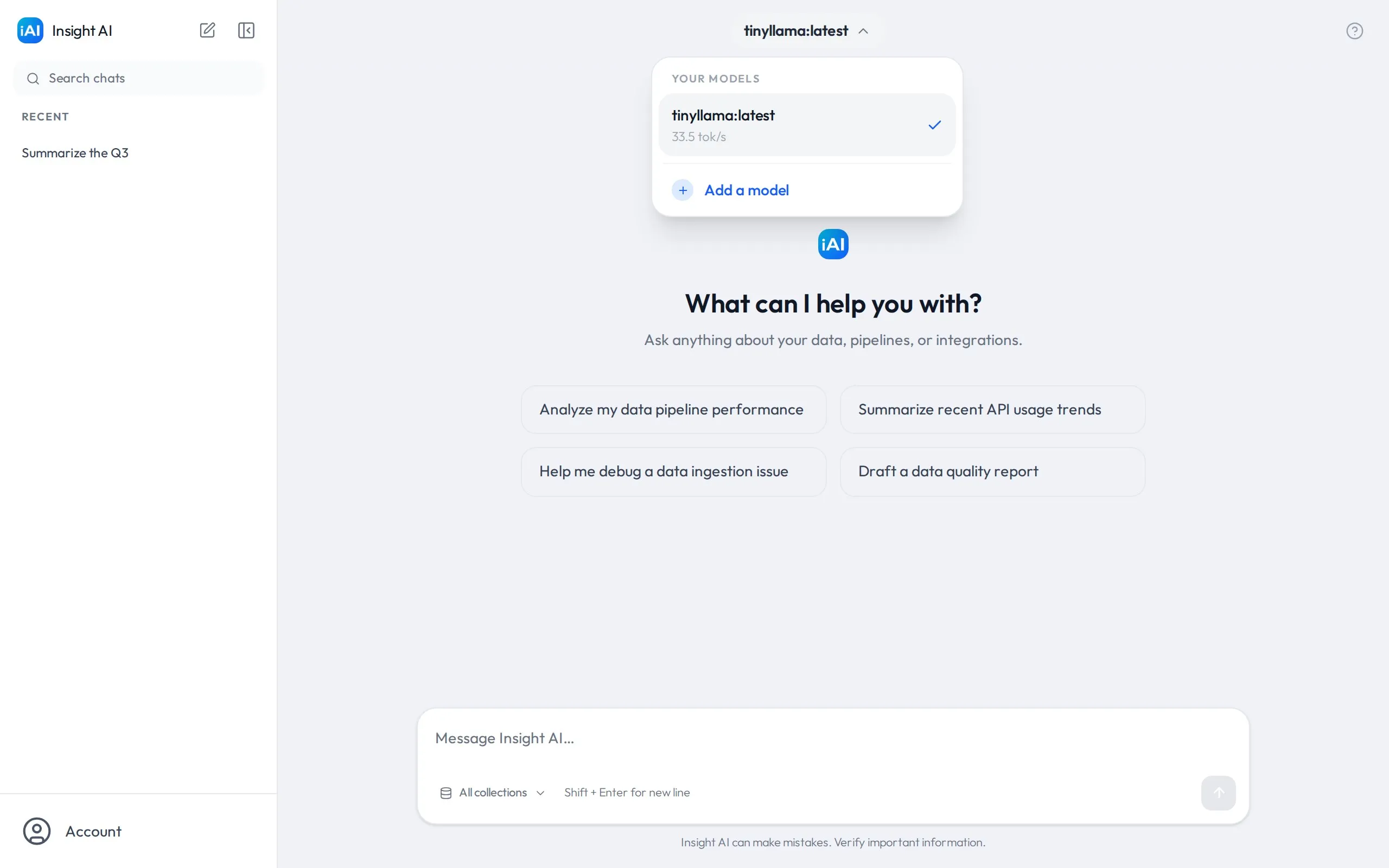
Add a model to your list
Section titled “Add a model to your list”Your personal list starts empty. To add a model:
- Open the model dropdown and choose Add a model. The Manage Models window opens.
- On the Browse Models tab, search the models your organization has already made available.
- Select a model to open the Add Model panel. Optionally record Hardware Notes (for example, which GPU or machine specs you’ve found work well with it).
- Select Add Model.
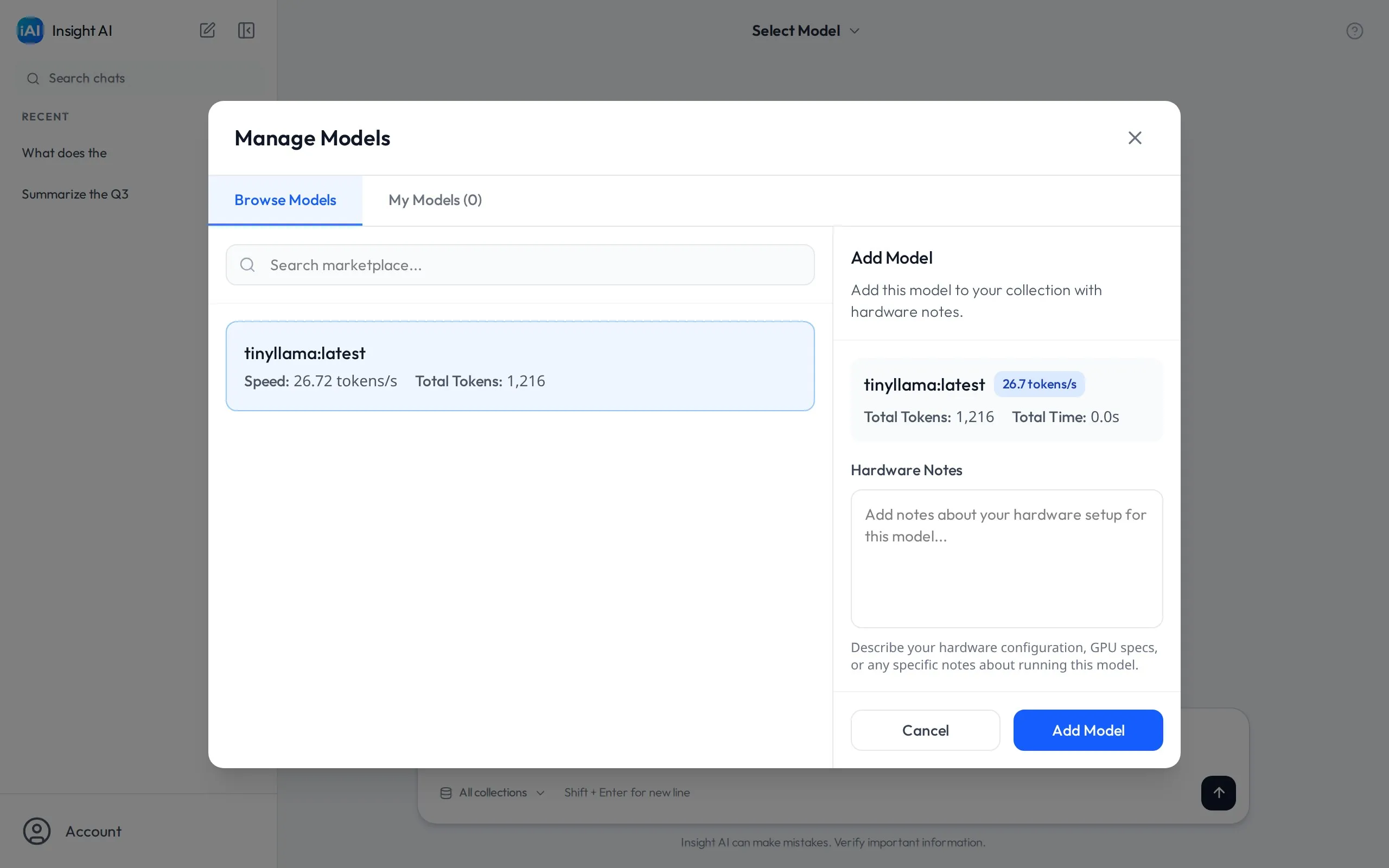
The model now appears under My Models and in the chat model selector.
Manage your models
Section titled “Manage your models”On the My Models tab of the same window you can:
- Review a model’s stats (tokens processed, total time, speed).
- Edit Notes to update your hardware notes.
- Delete Model to remove it from your personal list. This doesn’t affect the organization’s copy or other users.
Choosing well
Section titled “Choosing well”- Faster, smaller models respond quickly and are fine for short factual lookups over well-indexed content.
- Larger models produce noticeably better summaries, reports, and reasoning, at the cost of slower responses — you’ll see the difference in how quickly the words stream in.
- The tok/s figure shown next to each model comes from a benchmark run when the model was added to your organization — use it to compare relative speed.
If a model you select has been removed from the organization since you added it, sending a message will fail with a “model not found” error — pick another model or ask a teammate to re-add it on the Models page.